
ID Card Printer Troubleshooting: A Guide for UK Teams

When an ID card printer jams, breaks ribbons or produces faded images, repeated print attempts can waste cards without fixing the problem. Start by identifying the symptom before changing settings or supplies. If you’re considering printed photo ID cards UK teams can order instead of managing an in-house printer, that’s a separate option to weigh up.
A clear troubleshooting process helps you narrow down possible causes, try low-risk checks and recognise when to stop. Printer menus and procedures differ, so use the manual for your exact model before handling cards, consumables or internal components.
If maintaining an in-house printer no longer suits your team, we supply professionally printed photo ID cards in single-sided and double-sided formats, with portrait and landscape options. We offer real customer service, so you can talk to us rather than machines. Illustrations are indicative only and actual products may vary.
Key Takeaways
- Identify whether the printer won’t start, stops partway through a job or produces poor-quality cards before changing settings or supplies.
- Begin with basic checks, including power, visible connection status and the printer selected in your application.
- Match blank, faded, streaked, misaligned or jammed cards to a sensible next check. Avoid repeated print attempts if the cause is unclear.
- Work in order: note the error and job details, review settings and card orientation, then check the software preview.
- Professionally printed photo ID cards offer an alternative to managing an in-house printer. Our real customer service team is available to talk to, rather than machines. Illustrations are indicative only and actual products may vary.
ID card printer troubleshooting: identify the symptom before changing anything
Describe exactly what the printer is doing before deciding what to check. A printer that won’t start needs a different investigation from one that accepts a job but produces blank, faded or misaligned cards. Changing settings or supplies before identifying the behaviour can make the fault harder to trace and use up more cards.
Symptom-led troubleshooting means using what the printer does, and when it does it, to guide safe checks rather than assuming one fix suits every printer. A failure to start could relate to power, a connection or the print job. A job that stops partway through might involve software or card feeding, while poor output directs attention to the job setup, consumables or maintenance instructions. These are possible areas to investigate, not a diagnosis.
What to note before troubleshooting an ID card printer
Write down the printer’s make and model, the exact error message and the point where the process stops. Does the printer fail to respond, start feeding a card but stop, or complete the job with an unexpected result? Note when the message appears and whether it changes between attempts.
Record how widespread the issue is. Is it affecting one card, every card or only one design? If other jobs print as expected, keep the affected artwork and software details with your notes. Also record recent changes, such as a software update, settings adjustment, new artwork or different card supplies.
Avoid repeated test prints until you understand the likely cause and the printer’s card-handling instructions. Each attempt could use another card, and repeated feeding or handling may not be appropriate for every fault. Set aside an incorrectly printed card if it’s safe to do so, and follow the manufacturer’s instructions for dealing with cards and errors.
Is the problem the printer, software or card design?
The printer, software or design could be involved, and more than one factor may contribute. Check whether the problem began after a software, settings or artwork change. A job that doesn’t reach the printer calls for different checks from a card that feeds but prints with an unexpected layout. If only one design is affected, compare its software preview with the result before changing printer controls.
Use the manual for your exact model to interpret error messages and identify safe checks. Menus and procedures vary, so don’t assume instructions for another device apply. Card format is separate from printer troubleshooting. For general background, see this overview of international standards for identity cards. If you’re reviewing formats for an event, you can also explore our conference cards.
If you decide in-house printing isn’t the right workflow, we supply professionally printed photo ID cards. Our real customer service means you can talk to us rather than machines. Illustrations are indicative only and actual products may vary.
Check ID card printer connections, software and print settings
If a print job doesn’t reach the printer, check basic power and connection details before changing the driver or card settings. Work through the checks in order, and stop if the printer displays an error you can’t interpret. For indicators, controls and safe procedures, follow the manual for your exact model.
Work through basic power and connection checks
- Check the printer’s power and display. Look for signs that it’s switched on and note any message or indicator. Use the manufacturer’s instructions to interpret the display rather than guessing from a light or symbol.
- Check the visible connection status. Look at the connection between the printer and the computer or network, as applicable to your setup. Follow the manual’s guidance for checking connection indicators. Don’t unplug or reconnect equipment if the instructions don’t make clear how to do so safely.
- Confirm the selected printer. In the application’s print window, check that the intended ID card printer is selected. If several printers are available, a job sent to the wrong device may appear to vanish or print elsewhere.
- Restart only if the manual recommends it. Save your work first, then follow the model-specific instructions. Repeatedly switching the printer off and on won’t help you identify the fault.
If power and connection appear normal but the job still won’t proceed, note where it stops. This gives you a clearer starting point for checking software and layout without changing several things at once.
Review the print driver and card layout
Driver names, menus and options vary between printer models and operating systems. Check the selected printer and the options in your application against the printer manual and software instructions. If you think the driver is missing or outdated, use the printer manufacturer’s or operating system’s official support channels. Avoid driver files from unverified websites and don’t alter advanced settings just to see what happens.
Before sending another card, confirm that the job uses the intended card dimensions and portrait or landscape orientation. Compare the software preview with the artwork. Check that the design faces the right direction and that names, photographs and other elements sit within the intended layout. If the preview and finished card differ, review the job setup rather than assuming there’s one universal printer setting to change.
Physical cards remain a separate option alongside developments such as the UK’s digital ID scheme. If professionally printed cards suit your team better than managing print runs in-house, explore our photo ID card options.
Blank, faded, misaligned or jammed cards: match the symptom to a safe check
Match your next check to what the card or printer is doing, and consult the manual before handling cards, consumables or accessible components. A blank card, a faint image and a feed problem are different symptoms, and none points to one guaranteed cause.
Print defects can have different causes across printer models, so use the symptom to guide your next check, not to assume a particular part has failed. Start with the software preview and job settings. If those look right, consult the manufacturer’s instructions for approved cards, ribbons or other consumables, and any cleaning procedure. Don’t touch or clean internal parts unless the manual specifically permits it.
| Symptom | Possible area to check | Safe next step |
|---|---|---|
| Blank card | Job preview, selected print settings or the printer’s documented consumables | Check that the design appears in the preview and review the manual’s instructions for the supplies used. |
| Faded or streaked output | Print settings, consumables or a maintenance issue | Compare the preview with the card, then follow only the cleaning and maintenance steps approved for your model. |
| Misaligned design | Card dimensions, orientation or layout in the job | Check the preview and compare the selected layout with the printer and software instructions. |
| Card won’t feed or becomes stuck | Card loading, orientation or the printer’s feed mechanism | Check loading instructions. Use the manual’s jam procedure, if provided, before trying to remove a card. |
What to check when cards are blank, faded or streaked
For a blank card, first confirm that the job preview contains the intended design and that the correct printer and settings are selected. If the preview is correct but the card is blank, don’t conclude that a printhead, ribbon or card is faulty without model-specific evidence. Check the manufacturer’s guidance for the consumables and safe next steps.
For fading or streaks, review the settings and preview before considering maintenance. The manufacturer’s instructions should identify permitted supplies and any approved cleaning method. Don’t improvise with cleaning products or reach inside the printer.
What to do when cards misalign, jam or won’t feed
Check that cards are loaded and oriented as instructed for your printer. For a misaligned design, review card size, orientation and layout in the print job. If a card is stuck, don’t pull it out or open a panel unless the manual gives that procedure. If the printer remains blocked, stop and use the manufacturer’s support route rather than forcing the card or repeating the job.
Record the symptom and checks already tried. If recurring faults prompt your team to consider printed photo ID cards UK teams can order instead, treat that as a separate workflow decision, not a repair for the printer.
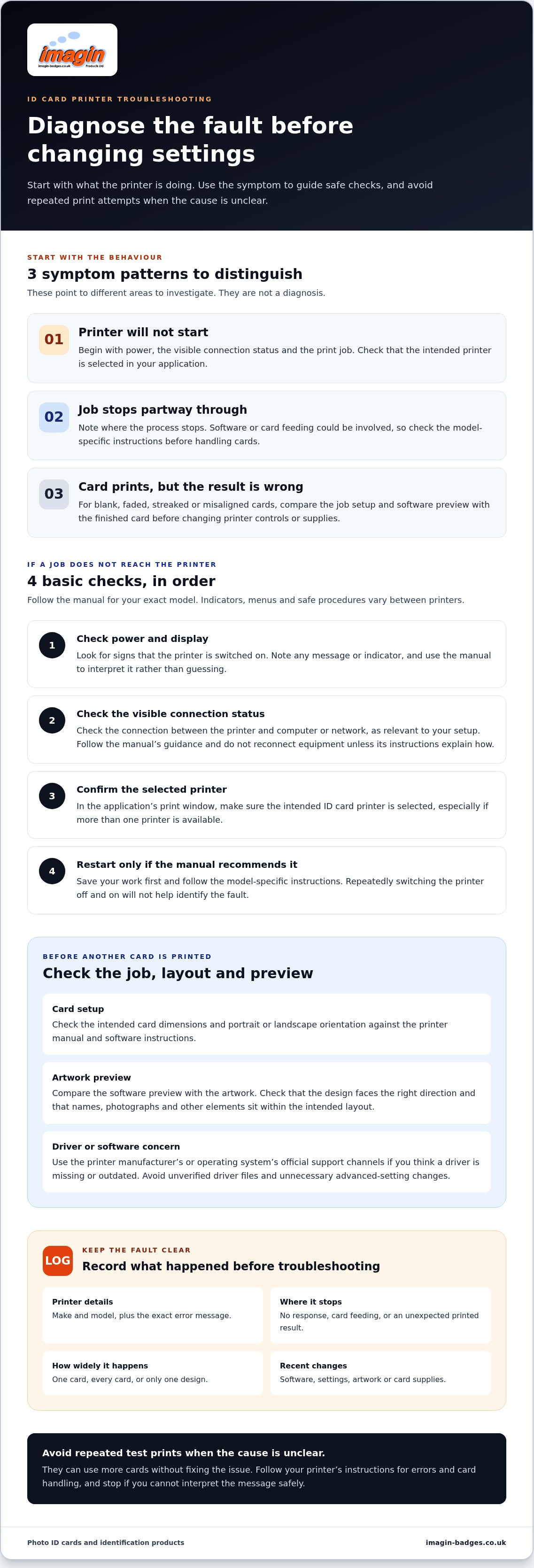
A safe step-by-step process for resolving ID card printer issues
Work from observation towards simple, documented checks, changing one thing at a time. The manual for your exact printer takes precedence over general guidance. A step-by-step approach helps you see whether a particular adjustment changes the result.
Follow a repeatable troubleshooting sequence
- Record the fault. Note the printer make and model, the exact error text, what the printer was doing when it appeared, and whether the job stopped before, during or after card feeding. Include recent changes to software, settings or artwork.
- Describe the output. Record whether the card is blank, faded, streaked or misaligned, or whether it didn’t feed or became stuck. Note if the fault affects one card, every card or a particular design.
- Check visible connections and the selected printer. Use the manufacturer’s instructions to interpret the display or connection indicators. In the application, confirm that the job is being sent to the intended printer.
- Review the job setup. Check the selected card size, portrait or landscape orientation and print layout against the printer and software instructions. Look at the preview before sending another job, and compare it with the supplied artwork.
- Check card orientation and loading. Follow the model-specific instructions for loading cards. Don’t remove a stuck card or open a panel unless the manual gives a safe procedure.
- Try one approved adjustment, then record the result. Make only a change permitted by the manual, such as a documented job-setting adjustment. Note what you changed and what happened before considering another step.
Avoid repeated print attempts if the fault remains unclear. Don’t attempt internal repairs, unfamiliar cleaning or any action the manufacturer’s instructions don’t describe. If you’re unsure about a check, stop there.
When to stop and seek printer-specific support
Use the printer manufacturer’s support route for recurring errors, persistent jams or a problem that appears to require internal access. Share the printer model, exact error message, when the fault occurs, the checks you’ve already tried and a clear description of the output. These details make it easier to discuss the issue in terms of your device rather than relying on generic settings advice.
If managing an in-house printer no longer suits your team, professionally printed photo ID cards offer a separate way to handle card production, not a repair for faulty equipment.
When professionally printed photo ID cards are a practical alternative
Professionally printed cards are an alternative to running print jobs in-house, not a repair for a faulty printer. They may suit your organisation if you’d rather not manage the printer, consumables and print runs, or if card production is an occasional task that doesn’t fit easily into your team’s routine. Consider who will prepare the artwork, how often cards need updating and how you want production handled.
Choose a photo ID card format around the information needed
Start with the information each card needs to display. A single-sided layout may suit a card that only needs information on the front. If you need details on both sides, a double-sided format lets you plan the front and reverse separately. Consider the reading order and keep key identification details easy to find.
We offer single-sided photo ID cards and double-sided options in portrait or landscape formats. Double-sided cards with a signature strip are also available. Choose orientation around the shape and amount of information in your design, rather than simply copying an existing layout. The finished card reflects the selected specification and artwork.
Compare the double-sided photo ID cards with the single-sided format when deciding how to use the available space. Check that the artwork supplied for production matches the names, photographs and other details you intend to show.
Decide whether in-house or professionally printed cards suit your process
Keeping production in-house gives your team direct control over when print jobs are run, but someone must manage the printer, prepare jobs and respond to faults. Professionally printed cards move the printing work outside your organisation. You’ll still need to organise accurate card information and artwork, and decide how updates or replacement cards will be handled.
Before choosing, consider how often you issue cards, who checks names and photographs, and whether your team has a reliable process for approving artwork and requesting changes. If you print regularly and need direct control over each job, in-house production may fit your workflow. If you’d prefer not to manage print runs and printer troubleshooting, ordering professionally printed photo ID cards is another option.
We offer real customer service, so you can talk to us rather than machines as you consider your card requirements. The available formats give you a starting point for planning your team’s design.
Use a clear process, then choose the card workflow that suits you
Start with the symptom, note the exact error and check the printer’s visible connections, selected device and job preview. Match the fault to a sensible next check, follow the manufacturer’s instructions and stop if resolving it would require unfamiliar internal access.
If you’d rather not manage card print runs in-house, professionally printed photo ID cards offer an alternative workflow, not a repair for faulty equipment. Our Photo ID & Conference Cards include single-sided and double-sided portrait or landscape options.
A methodical approach helps you choose the next step that works for your team, whether that’s model-specific printer support or a different way to organise card production.
Frequently Asked Questions
Why is my ID card printer printing blank cards?
A blank card doesn’t prove that a particular printer part has failed. The cause could relate to the print job, settings, printer or supplies, and possibilities vary by model. Check the software preview and confirm the correct printer is selected, then consult the manual for approved checks and suitable supplies. If that doesn’t help, stop repeated test prints and follow the printer manufacturer’s support guidance.
Why are the colours on my ID card prints faded or streaky?
Faded or streaked output can relate to job settings or printer-specific consumable and maintenance issues. Check the preview and print settings first, then follow the manual’s guidance on compatible supplies and approved cleaning procedures. Don’t assume a particular component is faulty or touch internal parts unless the instructions permit it. If the defect persists, record the printer model and describe the output before seeking manufacturer support.
What should I do if an ID card is stuck in the printer?
Don’t force the card out or open an unfamiliar panel. Check the displayed message and follow only the jam-removal procedure in the manual for your exact printer model. If the instructions are unclear, require internal access you’re unsure about, or the card remains trapped, stop and use the manufacturer’s support route. Note the model and error message, and describe what happened before the card became stuck.
Why is my ID card printer not feeding cards?
Check the card orientation, loading method and job settings against the instructions for your printer. Feed mechanisms and card requirements differ by model, so a generic adjustment may not be suitable. If cards loaded as directed still won’t feed, avoid repeated attempts. Record the printer model, any displayed error and the checks you’ve tried, then use the manufacturer’s guidance for model-specific assistance.
Can I use any card in an ID card printer?
No. Card size, material and compatibility requirements vary between printers. Check the documentation for your exact model before ordering blank card supplies, rather than assuming a card will work because it looks the right size. Our photo ID cards are professionally printed finished products. Their listed formats don’t establish compatibility with a particular in-house printer or its blank-card requirements.
Should I print staff photo ID cards in-house or order them printed?
Choose based on who’ll prepare the artwork, operate compatible equipment and manage print runs or updates. In-house printing leaves your team responsible for those tasks and for following the printer’s instructions. Professionally printed photo ID cards offer another workflow. We provide single-sided and double-sided portrait or landscape formats, with real customer service so you can talk to us rather than machines.

Article by
Team Imagin :)
Team Imagin helps businesses look their best with quality name badges, photo ID cards, lanyards and branded workwear. Based in Kirkcaldy, Scotland, we combine friendly, personal service with professional printing and embroidery to bring your branding to life. From small teams to large organisations across Scotland, the UK, Europe and America, we help you boost your brand and build connections.
Disclaimer
This article provides general guidance only. Information was correct to the best of our knowledge when published, but product details, prices and regulations may change. Check current specifications and official guidance before making decisions.